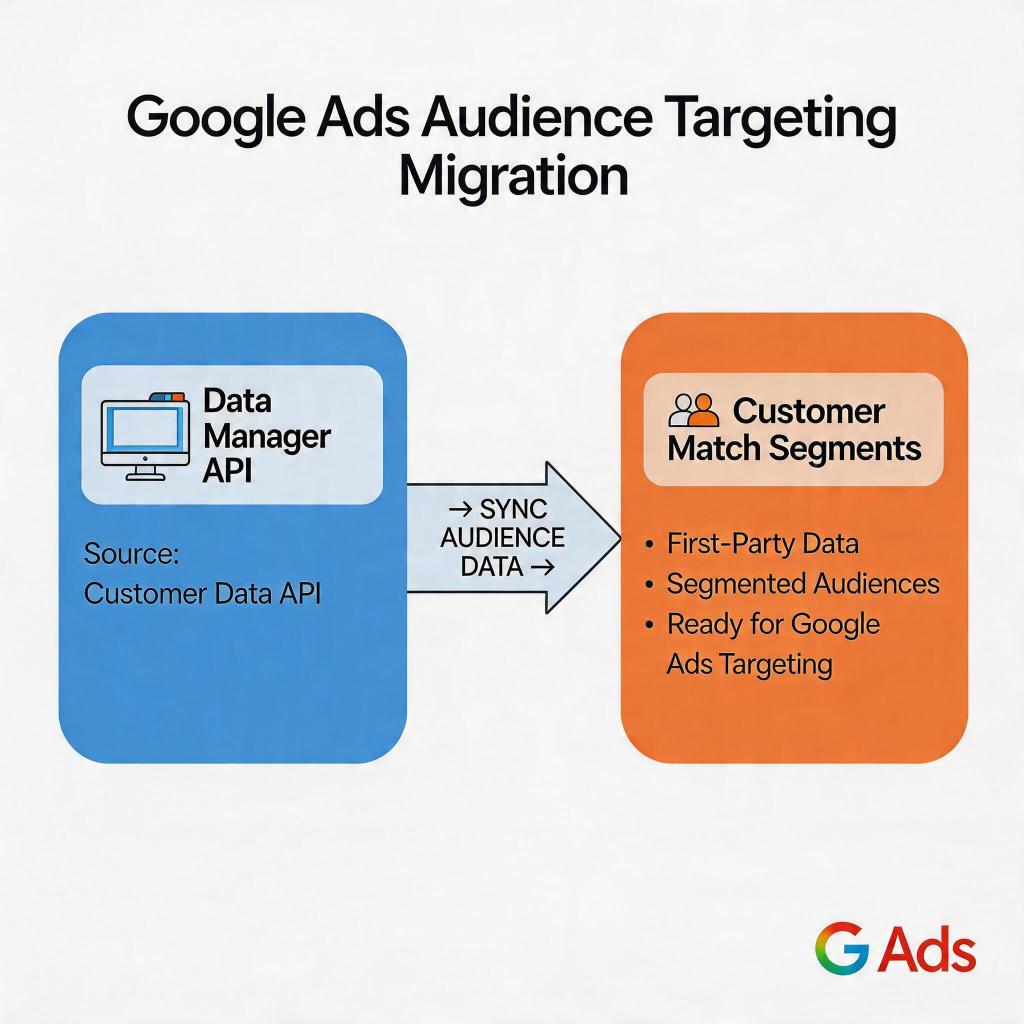
Google’s sweeping consolidation of its ads infrastructure is reshaping how performance marketers manage audience data. With privacy regulations tightening and Chrome’s third-party cookie deprecation accelerating, Google has been folding audience management tools into a unified platform called Data Manager. The most operationally significant change for app teams: Customer Match is now accessed exclusively through the Data Manager API. If your Google Ads PWA install campaigns depend on Customer Match audiences, this migration is not optional — it’s a deadline-driven necessity.
For出海 teams running AI social apps or BC games, Customer Match has been a cornerstone of re-engagement and lookalike strategies. The ability to upload hashed email lists or phone numbers and match them against Google’s logged-in users means precise targeting that doesn’t rely on third-party cookies. When that pipeline breaks — because the old upload workflow is deprecated — your campaigns fall back to broader auto-targeting, often at significantly higher cost per install and lower quality scores.
This guide walks you through exactly how the Customer Match migration to Data Manager API works, what it means for your PWA install campaign audience strategy, and the four steps you need to take before the old upload flow stops working in your account.
→ Want to bypass Google Play entirely and build a first-party data pipeline that feeds directly into Google Ads? See how ROiBest PWA works — no submission, no cut, 1.2x installs.
What Changed: Customer Match + Data Manager API in 2025–2026
For several years, Google offered two parallel paths for uploading first-party customer data into Google Ads:
- Customer Match (legacy): Upload email lists, phone numbers, or device IDs directly through the Google Ads interface or the legacy Customer Match API.
- Data Manager (new): Google’s unified data management hub that consolidates first-party data sources, third-party data partnerships, and audience segment creation — including Customer Match functionality.
As of 2025, Google has been progressively retiring the legacy Customer Match upload flow. For many accounts, the option to upload customer lists directly within the Google Ads UI has been removed or is showing a强制迁移 notice. The Data Manager API is now the primary and recommended path for:
- Creating Customer Match segments from your CRM or first-party data
- Managing data source permissions and user consent
- Syncing audience segments to Google Ads campaigns in real time
For PWA install campaigns, this change matters most in three areas:
- Audience segment availability: If your UAC or PMax campaigns use Customer Match-based audience signals, those signals go dark when the legacy upload flow is deprecated — your campaigns keep running, but on auto-targeting without your high-value user overlay.
- Match rate and audience size: The Data Manager API can produce different match rates depending on how data sources are configured. Audiences may shrink or grow based on consent settings and data hygiene.
- Re-engagement campaigns: If you use Customer Match to re-engage lapsed users with PWA install ads, any interruption in the data pipeline directly reduces re-engagement volume and increases your cost to reactivate users.
The practical consequence: inactive audiences aren’t deleted — they’re silently depopulated. Your campaigns keep spending, but the precise targeting you built disappears without a warning in your campaign UI. The only solution is to migrate proactively.
Why PWA Install Campaigns Are Especially Exposed
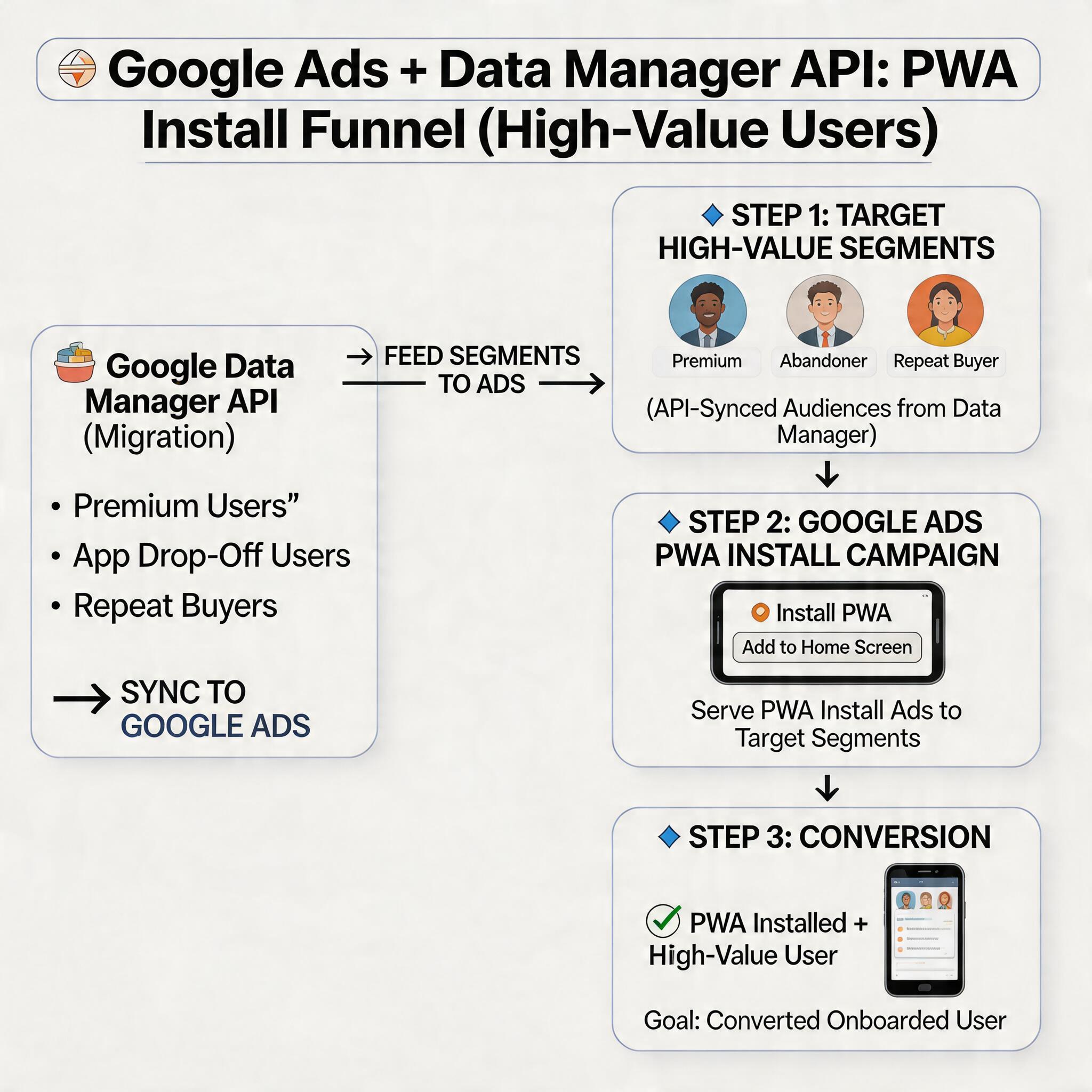
If you’re running Google Ads to drive PWA installations for an AI dating app, an AI companion app, or a BC game, Customer Match is likely doing more heavy lifting than you realize.
Here’s the typical audience architecture for a PWA install campaign in this space:
- Seed audience: Your best users — those who converted in-app, made a purchase, or reached a high-engagement milestone — are uploaded via Customer Match to create a “high-value user” segment.
- Lookalike / Similar audience: Google uses the Customer Match seed to find new users who resemble your best customers across the Google Search and Display network.
- Re-engagement: Users who installed your PWA but haven’t opened it in 7–14 days are re-targeted with install or re-activation ads via Customer Match.
All three of these audience strategies are built on Customer Match segments. If those segments go dark because the legacy API is deprecated, your PMax or UAC campaigns lose the audience signal layer — they’re now optimizing against Google’s inferred signals rather than your actual first-party data. Performance typically drops 15–30% in cost per action before teams even diagnose the root cause.
The window to migrate is not infinite. Google has been enforcing the Data Manager API requirement account-by-account, with the legacy upload option disappearing for many accounts without advance notice.
Step 1: Audit Your Existing Customer Match Audiences
Before you touch the Data Manager API, you need a complete picture of what you’re migrating. Don’t skip this step — teams that migrate blindly often create duplicate segments or lose audience history, making it impossible to compare pre- and post-migration performance.
Go to Google Ads → Audience Manager → Customer Match and export the full list. For each segment, record:
- Segment name
- Matched user count
- Associated campaigns
- Whether the segment is actively serving in a live campaign
Sort by campaign association. Audiences driving active campaigns are your migration priority — rank them first. Segments with zero impressions in the last 90 days are candidates to be rebuilt from scratch rather than migrated, since stale segments often have low match rates anyway.
This audit step is also the moment to identify segments that can be consolidated. If you’re managing separate email-based segments for different products or user tiers, Data Manager supports richer audience schemas — you can often replace three separate segments with one well-structured data source that generates multiple segments.
Step 2: Verify Data Manager Is Connected to Your Google Ads Account
Data Manager is a separate Google product — not native to the Google Ads UI. Before you can create Customer Match segments through the new API, you need to confirm that Data Manager is accessible and linked to the Google Ads account running your PWA install campaigns.
Go to Data Manager (datamanager.google.com) and sign in with the same Google account used to manage your Google Ads. If you don’t see your Google Ads account listed, you’ll need to request access from your Google account team or an admin with permissions.
Key things to verify at this stage:
- Data source status: Are any first-party data sources (CRM integrations, FTP uploads, BigQuery connections) already connected? Note what’s already there — you may be able to build new Customer Match segments from existing sources rather than starting from scratch.
- User consent configuration: Data Manager has explicit consent settings tied to each data source. Make sure consent is configured correctly for your target geographies — EU users require GDPR-compliant consent frameworks.
- Account permissions: Verify that the Google account you use has Editor or Admin access in both Data Manager and Google Ads. Insufficient permissions will cause silent failures in segment creation.
Step 3: Create New Customer Match Segments via Data Manager API
This is the migration core. In the legacy flow, you uploaded a customer list directly in Google Ads and a Customer Match segment was created automatically. In the Data Manager flow, the steps are slightly more explicit — but this added structure is actually an asset for managing large, complex audience strategies.
Within Data Manager, the process looks like this:
- Navigate to Segments → Customer Match and select your data source.
- Choose the matching attributes — typically email addresses for general audiences, or device IDs if you’re targeting based on mobile install history.
- Define the audience schema — attributes like user lifetime value, last purchase date, or engagement tier. This is richer than the legacy Customer Match format, which only supported basic list uploads.
- Set consent status — Google requires explicit confirmation that users have consented to being targeted with their data across Google properties.
- Submit and wait for the segment to be processed. Matched user counts typically populate within 24–48 hours.
The key advantage of this new flow: one data source, multiple segments. Once your CRM data or first-party install data is connected to Data Manager, you can create dozens of audience segments from the same underlying data — by behavior, purchase value, engagement depth, or lifecycle stage. This is far more flexible than the legacy one-upload-per-segment model.
For PWA install campaigns specifically, you can now build segments like:
- “PWA installers who opened the app within 3 days” — for re-engagement targeting
- “Users with LTV > $20 from [specific game genre]” — for lookalike seed creation
- “Email subscribers who have not installed the PWA” — for cross-device prospecting
Data Manager also supports API-based automation, meaning your data team can build a pipeline that continuously updates Customer Match segments from your backend data — keeping audience lists fresh without manual uploads.
Step 4: Test and Scale — Protect PWA Campaign Performance During Migration
Once your new Customer Match segments show a “Ready” status in Data Manager and are synced to Google Ads, the migration isn’t complete — it’s just started. The final step is validating that the new segments perform as well as or better than the legacy ones.
Run a parallel test before retiring the old segments:
- Isolate a test campaign or ad group with a limited daily budget ($20–$50).
- Target exclusively the new Data Manager Customer Match segment.
- Compare performance against your legacy segment over a 5–7 day window: CPA, CPI, in-app event conversion rate, and ROAS.
If the new segment performs within 10% of the legacy segment on key metrics, you’re ready to migrate fully. If performance drops significantly, investigate: Is the match rate lower than expected? Are there consent gaps in the data source? Is the audience too narrow?
Once you’re satisfied, scale the new segments across your full PWA install campaign portfolio. Don’t delete the legacy segments immediately — archive them for 30 days as a rollback option in case something goes wrong.
What This Means for Your PWA Distribution Strategy
The Customer Match migration to Data Manager API is ultimately a data hygiene and infrastructure upgrade. Done right, it gives you richer audience segmentation, better consent management, and a more sustainable first-party data pipeline for your Google Ads campaigns.
For出海 teams running PWA install campaigns, the bigger strategic question is: how do you build the first-party data foundation that makes Customer Match — and every other Google Ads audience strategy — more powerful over time?
This is where ROiBest changes the math.
ROiBest’s PWA distribution solution is built around first-party data collection at the point of install. When a user installs your PWA, ROiBest captures consented first-party install event data — including device characteristics, install source, and session behavior — and feeds that directly into your Google Ads audience ecosystem via Data Manager.
The result: your Customer Match segments are denser, fresher, and more accurate because they’re built from real PWA install events rather than purchased or inferred third-party data. For BC games and AI social apps, where user trust and data compliance are both critical, this matters enormously.
ROiBest’s managed PWA distribution service means you don’t have to build this data pipeline yourself — the team handles technical implementation, consent management, and Data Manager integration, so your audience strategy is always fed by high-quality, consented first-party data.
Conclusion: Migrate Now, Build a Stronger Data Foundation
The Customer Match migration to Data Manager API is a forcing function — it pushes you to build a more structured, more compliant, and ultimately more effective first-party data strategy for your Google Ads PWA install campaigns.
The four steps are clear: audit what you have, verify Data Manager connectivity, create new segments through the new API, and validate performance before scaling. Any delay means your high-value user targeting degrades silently — your campaigns keep running, but the precision is gone.
For出海 teams, the migration is also an opportunity. By building your data pipeline around ROiBest’s PWA distribution — which captures consented first-party install data at the source and feeds it into Data Manager — you create a compounding advantage: better Customer Match segments today, richer lookalikes tomorrow, and lower cost per install as audience quality improves.
The teams that treat this migration as a one-time technical chore will rebuild their segments and move on. The teams that treat it as a data foundation project will out-compete them.
Skip the app store. Go live instantly, keep 100% of your revenue.
ROiBest helps Android app teams launch PWAs — no review process, no 30% Google Play cut, and push notifications that work even after uninstall. Teams see up to 1.2x higher install conversion rates vs native app downloads.
 WebApp中文站
留下评论